FL Studio

| Feature | Description |
|---|---|
| Software | FL Studio |
| Developer | Image-Line |
| Category | Music Production |
| Platform | Windows, macOS, iOS, Android |
| Main Use | Beat Making and Music Editing |
| Best For | Beginners and Professionals |
| Audio Formats | MP3, WAV and more |
| License | Free Trial and Paid Editions |
FL Studio
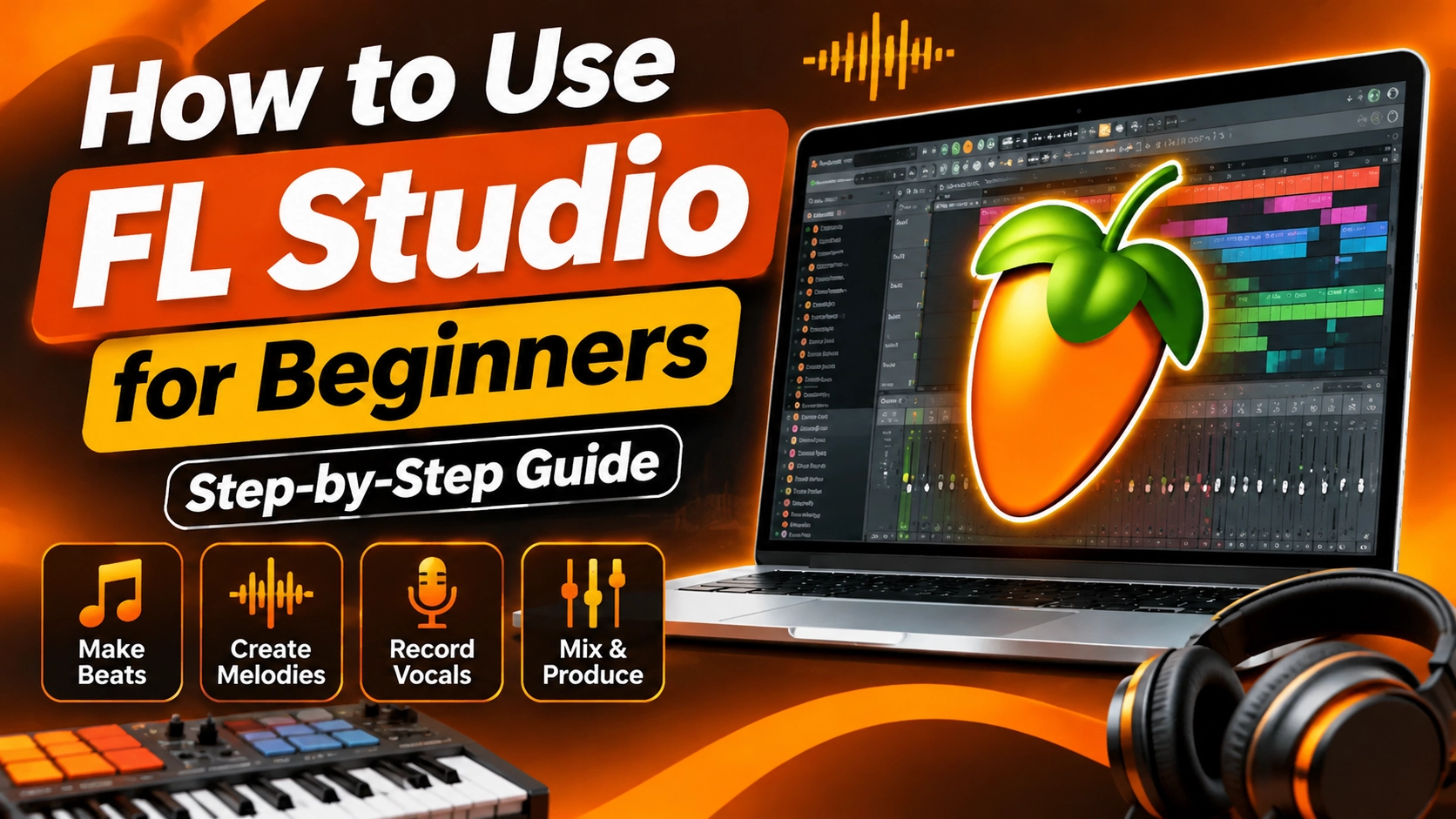
Have you ever wanted to create your own beats but felt confused by music production software? You do not need professional experience to start making music. FL Studio gives beginners useful tools to create beats, compose melodies, record vocals, and produce complete songs. Its flexible interface makes music production easier to learn.
Whether you want to make hip-hop beats, electronic music, or relaxing melodies, you can start with simple steps. You only need a compatible computer, some creativity, and regular practice. This guide explains how to use the software from the beginning. You will learn its interface, basic tools, music creation process, and useful tips.
1. What Do You Need Before Using FL Studio?
Before starting your first music project, prepare your computer and basic equipment. FL Studio works on compatible Windows and macOS computers. You do not need an expensive recording studio to begin.
Basic System Requirements
Check these basic Windows requirements before installation:
- Operating system: Windows 10 or 11.
- Processor: Compatible Intel or AMD CPU.
- RAM: At least 4 GB.
- Storage: At least 4 GB of free space.
- Processor support: SSE2.
For better performance, use a modern processor, 8 GB or more RAM, and an SSD.
Equipment for Beginners
You can start with simple equipment. Consider these useful items:
- A Windows or Mac computer.
- Good-quality headphones.
- A comfortable mouse and keyboard.
- A microphone for recording vocals.
- A MIDI keyboard for playing melodies.
Start with the equipment you already have. You can upgrade later as your skills improve.
2. How to Download and Install FL Studio
The first practical step is downloading the correct installer. Always choose the official Image-Line website to avoid unsafe or modified files. FL Studio provides a free trial that allows beginners to explore its music production tools.
Follow These Installation Steps
- Visit the official Image-Line website.
- Open the download section.
- Select the Windows or macOS installer.
- Download the setup file.
- Open the downloaded installer.
- Follow the installation instructions.
- Complete the setup process.
- Launch the software on your computer.
After installation, open the application and explore its main workspace.
Important Note About the Free Trial
The free trial allows you to create and export music. However, you cannot reopen saved project files until you purchase and unlock a suitable
edition. Check the available editions before buying.

3. Understand the FL Studio Interface
The interface may look confusing when you open it for the first time. However, each window has a specific purpose. FL Studio organizes its production tools into separate sections, which makes music creation easier.
Channel Rack
The Channel Rack helps you organize instruments and drum sounds. You can create different rhythms using its step sequencer.
Piano Roll
The Piano Roll allows you to create melodies and chords. You can add notes, change their positions, and adjust their length.
Playlist
The Playlist helps you arrange patterns and audio clips. You can organize your music into different sections.
Mixer
The Mixer controls the volume and sound quality of different instruments. You can also add audio effects to improve your tracks.
Browser
The Browser gives you access to samples, instruments, presets, and project files. Use it to find sounds for your music.
4. How to Create Your First Beat in FL Studio
Creating your first beat is an exciting way to learn music production. Start with a simple rhythm instead of making a complicated song. FL Studio provides drum samples and sequencing tools that help beginners build their first patterns.
Step 1: Open a New Project
Launch the software and create a new project. You will see the main workspace with different production windows.
Step 2: Choose Drum Sounds
Open the Browser and explore the available samples. Select these basic drum sounds:
- Kick drum.
- Snare drum.
- Hi-hat.
- Clap.
Drag your selected sounds into the Channel Rack.
Step 3: Create a Drum Pattern
Use the step sequencer to arrange your drum sounds. Click different steps to create a rhythm.
Start with a basic pattern. Change the positions until you find a beat you like.
Step 4: Adjust the Tempo
Tempo controls the speed of your music. You can increase or decrease the BPM according to your preferred style.
For beginners, try a tempo between 90 and 120 BPM. Experiment with different speeds to understand how they change your rhythm.
5. How to Create Melodies Using the Piano Roll
A good melody can make your music more interesting. The Piano Roll helps you create musical notes without playing a physical keyboard. FL Studio provides note editing tools that make melody creation simple.
Step 1: Select an Instrument
Choose a virtual instrument from the Browser or Channel Rack. You can select a piano, synthesizer, bass, or another available sound.
Step 2: Open the Piano Roll
Right-click the instrument channel and open the Piano Roll.
You will see a grid containing different musical notes.
Step 3: Add Musical Notes
Click inside the grid to place notes. Move them up or down to change their pitch.
You can also adjust their length to create different musical patterns.
Step 4: Experiment With Chords
Try combining different notes to create simple chords. Listen carefully and adjust the notes until they sound good together.
6. How to Arrange Your Song in the Playlist
After creating your beats and melodies, arrange them into a complete song. The Playlist helps you organize different musical elements. FL Studio allows you to move, duplicate, and edit patterns to build your arrangement.
Create Different Song Sections
A simple song structure may include:
- Introduction: Start with a basic melody.
- Verse: Introduce the main rhythm.
- Chorus: Add stronger musical elements.
- Bridge: Create a different musical feeling.
- Outro: End the song smoothly.
Organize Your Patterns
Place your drum patterns and melodies on separate tracks. This makes editing easier and keeps your project organized.
Listen to the complete arrangement and make changes wherever necessary.
7. How to Mix and Add Effects
Mixing helps you balance different sounds in your project. It makes your music clearer and more enjoyable. FL Studio includes several built-in effects that help you improve your instruments and recordings.
Useful Effects for Beginners
Here are some common effects to explore:
- Equalizer (EQ): Adjusts different sound frequencies.
- Reverb: Adds space and depth to sounds.
- Delay: Creates repeated audio effects.
- Compression: Controls differences in audio volume.
- Distortion: Adds stronger sound textures.
- Chorus: Makes sounds feel wider.
Balance Your Audio Levels
Open the Mixer and assign your instruments to separate channels. Adjust their volume levels carefully.
Avoid making every sound too loud. Keep enough space between instruments to create a balanced mix.
8. How to Export Your Music
After completing your project, export it as an audio file. FL Studio supports several export formats, including WAV and MP3.
Follow These Export Steps
- Open the File menu.
- Select the Export option.
- Choose your preferred audio format.
- Select the file location.
- Adjust the available export settings.
- Start the rendering process.
- Wait until the audio file finishes exporting.
WAV works well for high-quality audio. MP3 is useful when you want a smaller file for sharing.
Listen to your exported track before publishing it.
9. Best Tips for Beginners Using FL Studio
Learning music production takes time. You should focus on basic skills before exploring advanced tools.
Here are some useful tips to improve your workflow:
- Practice creating simple beats every day.
- Learn the Piano Roll and Channel Rack.
- Explore different drum samples.
- Use headphones to check sound quality.
- Save your projects regularly.
- Keep your samples and files organized.
- Watch tutorials to understand new features.
- Experiment with different music styles.
Do not compare your first project with professional songs. Focus on learning something new with every project.
Frequently Asked Questions
Is FL Studio easy to use for beginners?
Yes. Beginners can learn its basic tools through practice. Start with drum patterns, simple melodies, and basic arrangements.
Can I make beats without a MIDI keyboard?
Yes. You can create melodies using your mouse and the Piano Roll. A MIDI keyboard is optional.
Can I record vocals in FL Studio?
Yes. You can record vocals using a compatible microphone and audio setup. You can then edit and process your recordings.
Is FL Studio available for free?
Image-Line offers a free trial. However, you need a paid license to reopen saved project files.
Can I use FL Studio on Windows 11?
Yes. The desktop version supports compatible Windows 11 computers.
How long does it take to learn FL Studio?
Basic tools can take a few days to understand. However, mastering music production requires regular practice and experience.
Final Words
Learning music production becomes easier when you follow the right steps. FL Studio provides useful tools for creating beats, composing melodies, arranging songs, and improving audio quality. Beginners can start with simple projects and gradually explore advanced features.
Take your time to understand each tool. Practice regularly and experiment with different sounds. With patience and creativity, you can develop your production skills and create original music. Start your first project today and turn your musical ideas into reality.
1 thought on “How to Use FL Studio for Beginners”